Quicktap Tennis Scorekeeper
Watch App Instructions
Like all Apple watch apps, the app has two components, the part that runs on the phone and the part that runs on the watch itself. Strictly speaking you don’t NEED the phone part of the app but it allows you to adjust the score on the watch as well as eventually providing a reviewable repository of match history and accompanying biometric data.
We’ll start with basic watch app match scoring instructions then go over the workout settings and flash stats.
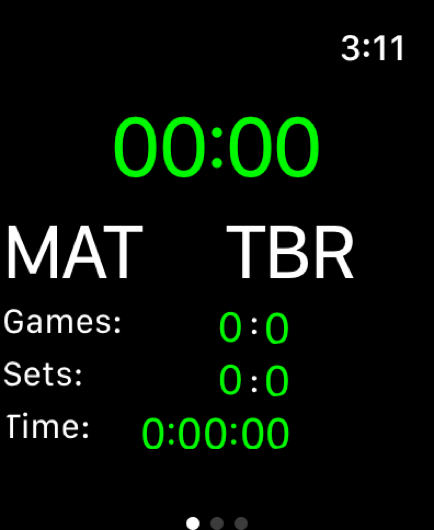
When you start the app, you will see this screen:
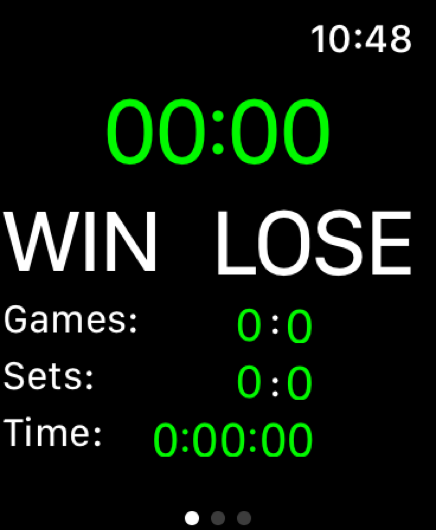
Use your finger to double tap the game score (currently 00:00) to display the scrolling app menu. This action will work with any game score, not just at 00-00.
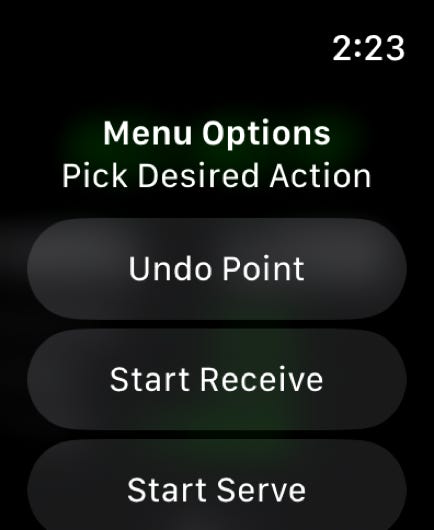
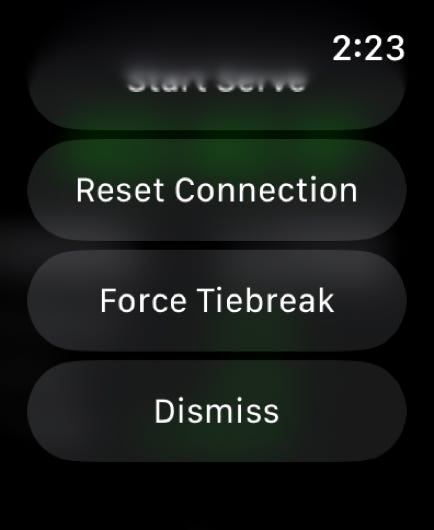
To start a match, press on either of two menu selections depending on if you are serving or receiving. The app will then ask if you are playing singles or doubles. A third choice will come up asking if you want to play a regular 3 set match or a single set match. For now, let’s assume this is a regular 3 set match. The display on the left is for doubles, the one on the right, for singles. Let’s assume you are playing singles for the moment and then cover the differences for doubles later:
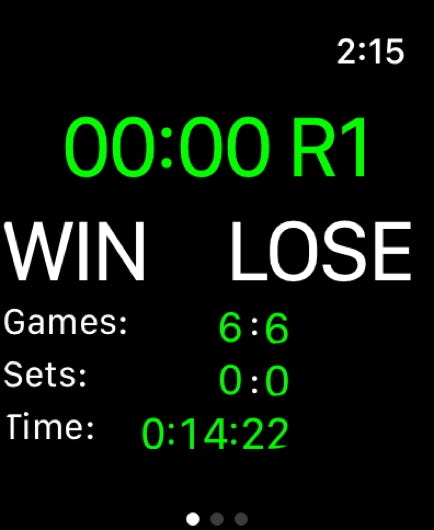
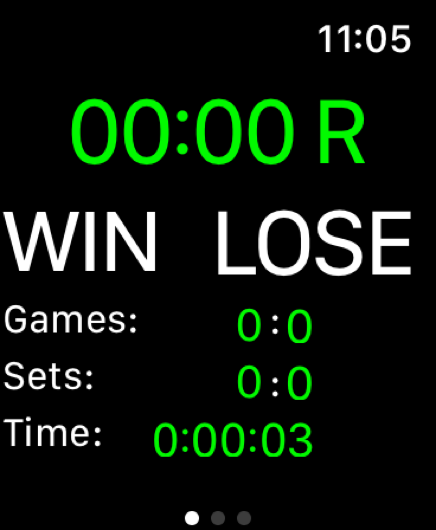
The ‘R’ shows you are receiving and the match timer at the bottom will start.
As each point occurs, double tap either the WIN or the LOSE button twice to record the point. The score will change with each point. When the serve switches, the R will change to an S to indicate you are serving and you continue. Also, a reminder tone is sounded and the score will reverse when you need to switch sides which is helpful when playing tie breaks.
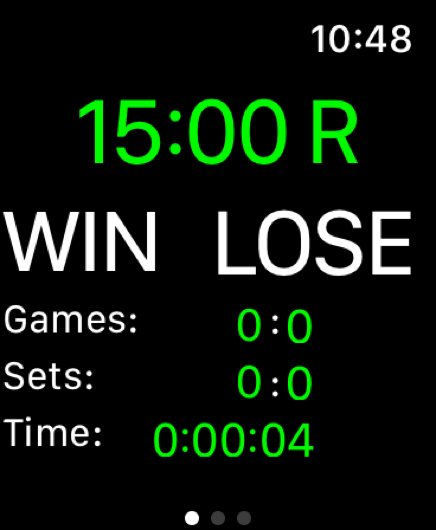
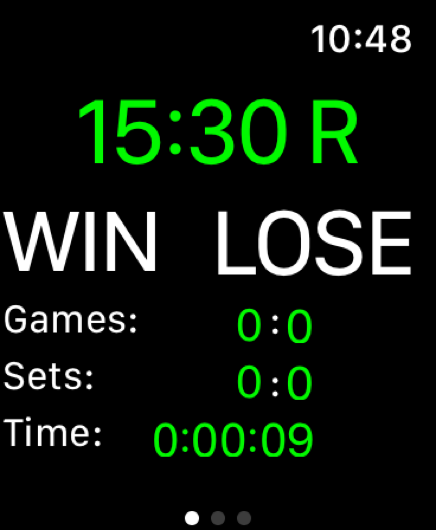
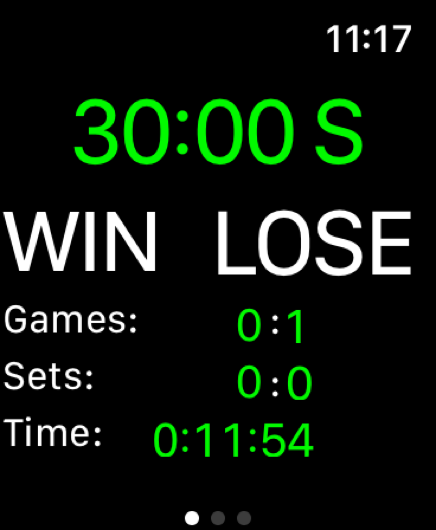
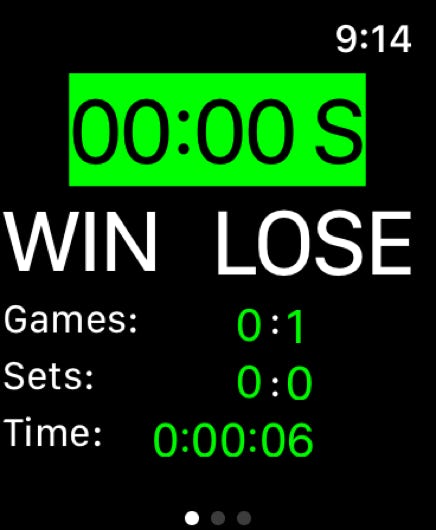
Here are some sample screens just to give you an idea how this works. The score switches just like it would if you were announcing it between each point.
If you make a mistake and enter the wrong player to win a point, you can undo the entry and redo it by double tapping on the score to bring up the menu and pressing on the undo option. This will reset the score and let you fix it.
If you have a bigger problem than that, you can adjust the score on the phone and transmit the updated score back to the watch. The process is outlined for that elsewhere on the site in the full Phone app instructions page .
If the set gets to a tie break, the watch will figure that out and present the following:
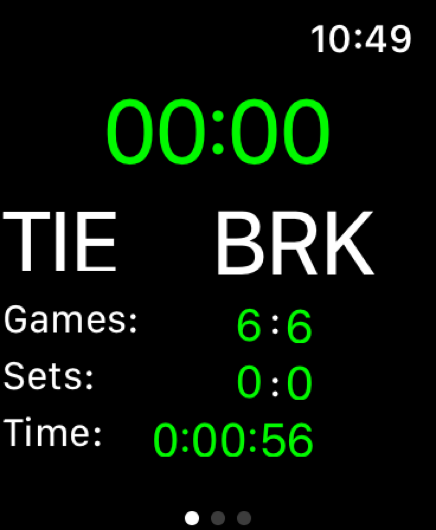
it will also ring a tone as well as determine if a side switch is required (since the score is 6-6, that’s a no) and determine who is serving and display that AFTER you double tap either the TIE or BRK buttons on the screen:
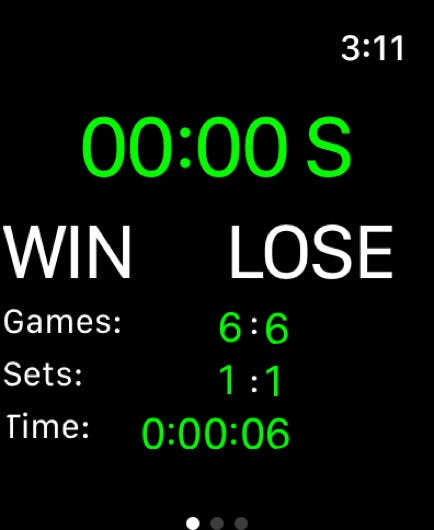
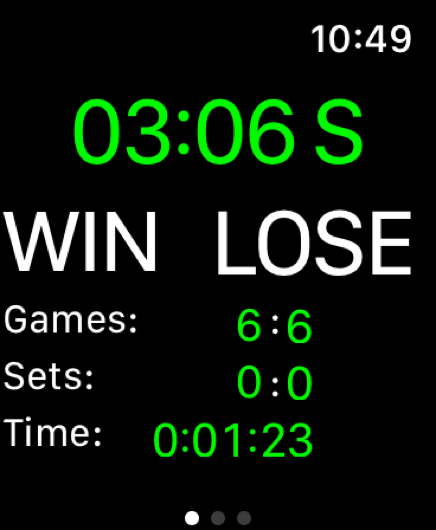
Here are two typical singles mid tie break display. The watch will ring a tone during side switches, reverse highlight the score, and properly record who is serving. Instead of the normal game scoring, you’ll see a 7 point tie breaker scoring and switches will be prompted after playing 6 points. When the tie break ends, you will be taken back into regular scoring mode to continue the match. The app also indicates if a side switch is needed after the tie break is completed.
If the match ends after two sets, the match ending screen will be shown, indicating who won and the game score. Here are some sample screens you might see:
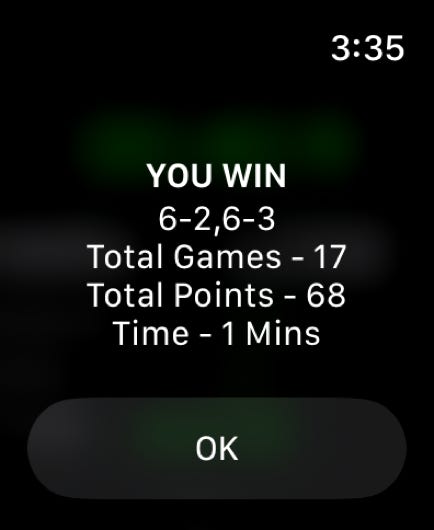
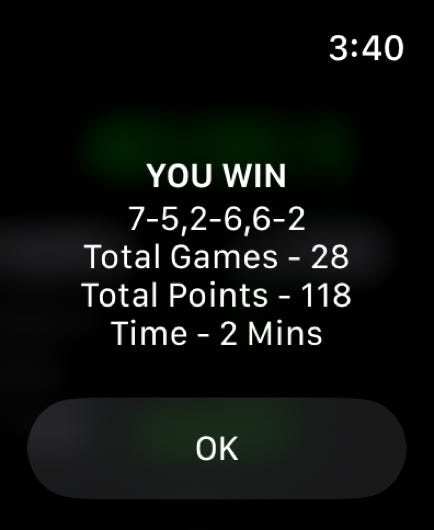
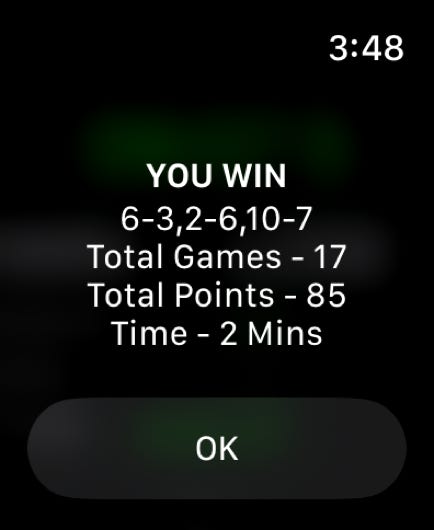
Double tap the OK button to get back to the scoring screen.
If the match ends up one set a piece, a screen will be displayed that asks if you want to play a third set or a tie break. You can either Quit (if you just want to stop there if it was some sort of practice session), play the third set of play the tie break.
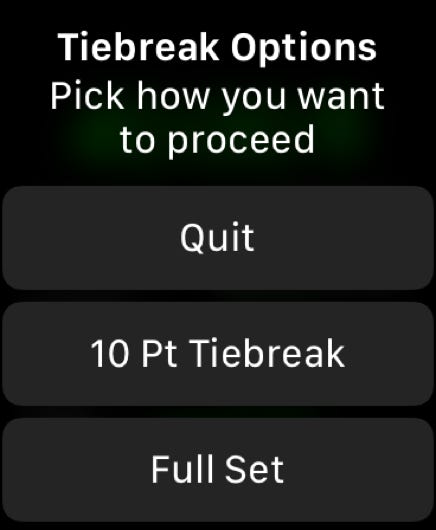
If you play a third set, the regular scoring screen will be displayed and you just play a third set. If you choose a tie breaker, you will be guided through a 10 point tie breaker with 6 point side switches. The final score will be display on the win/lose screen and will include the tie breaker points.
If you choose to play a doubles match, the screen flow is pretty much the same but the display itself is different because it shows which of the two players on a team is serving the current game. Here’s how that works.
After selecting to start the match either receiving or serving, a choice screen pops up asking if you are playing doubles or singles as opposed to the old version which simply started the match. After selecting singles or doubles, another choice screen after that asks if you are playing a regular match or a single set match.
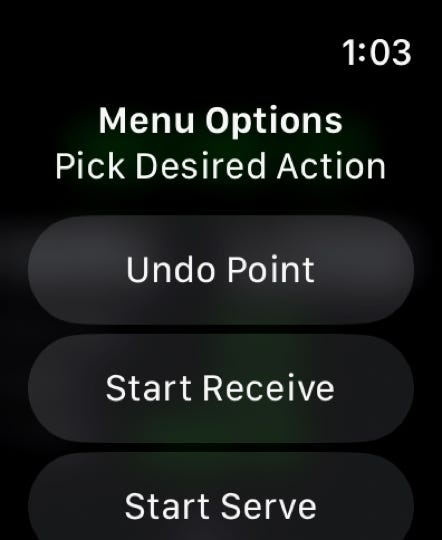
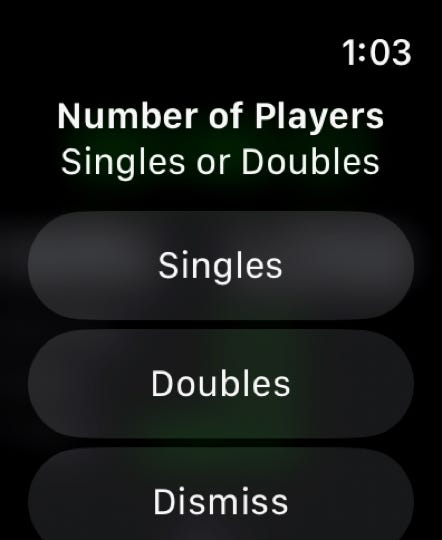
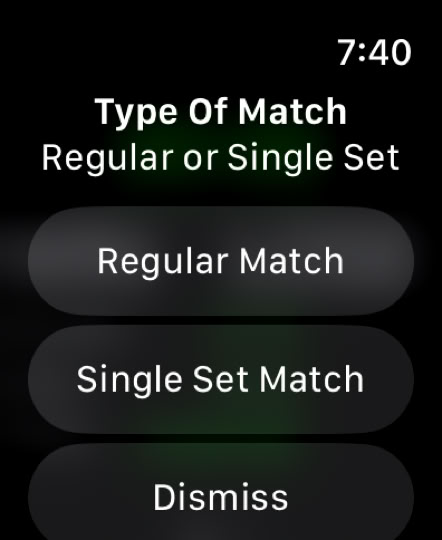
Let’s assume you initially had selected ‘Start Serve’. If you select ‘Singles’ on the second screen and ‘Regular Match’ on the third screen, the watch displays the current singles scoring display as you see on the left. However, if you select ‘Doubles’ on the second screen and ‘Regular Match’ on the third screen, the display now contains an additional element as shown on the right:
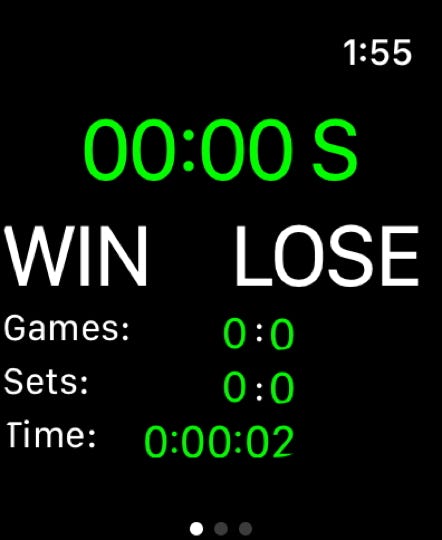
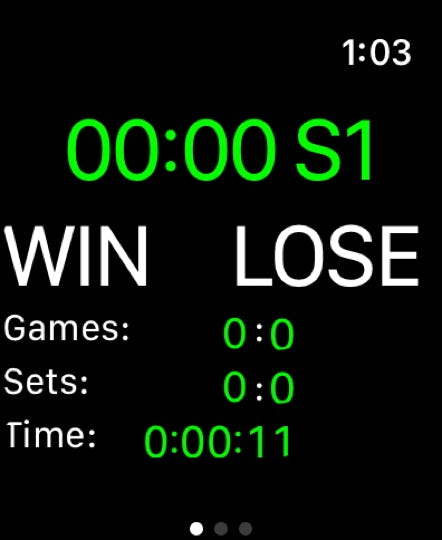
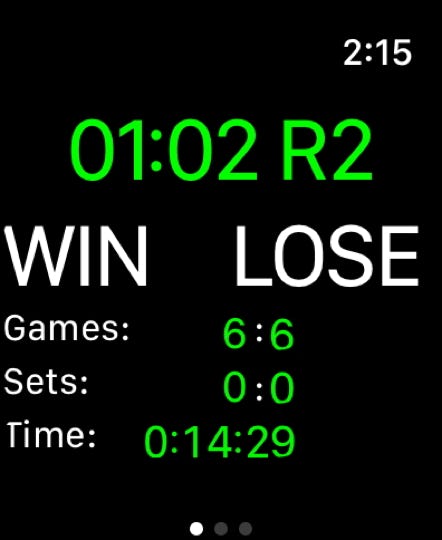
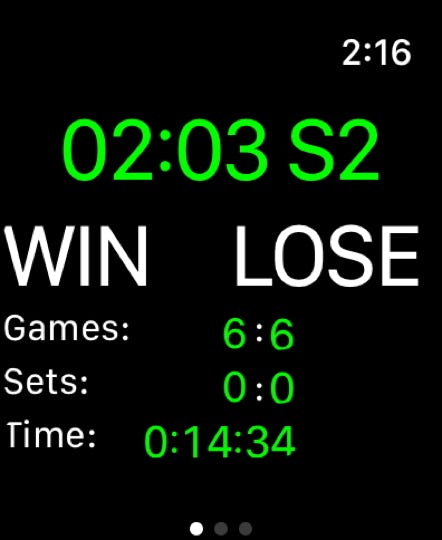
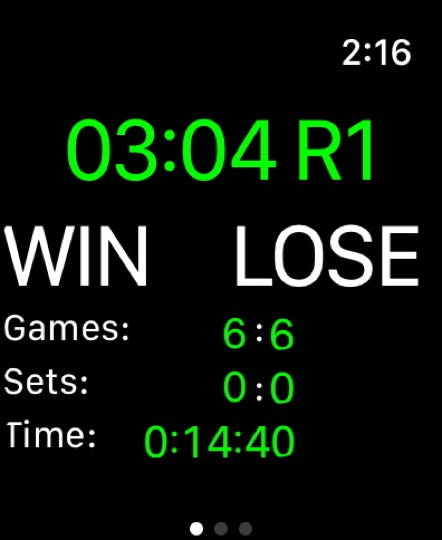
Notice that the doubles server indicator shows an S1 as opposed to an S. This indicates that the first server on your team is now serving.
If you had selected that you are receiving instead, you’d see this:
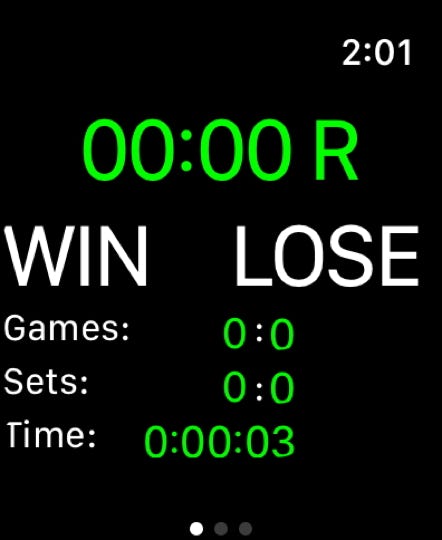
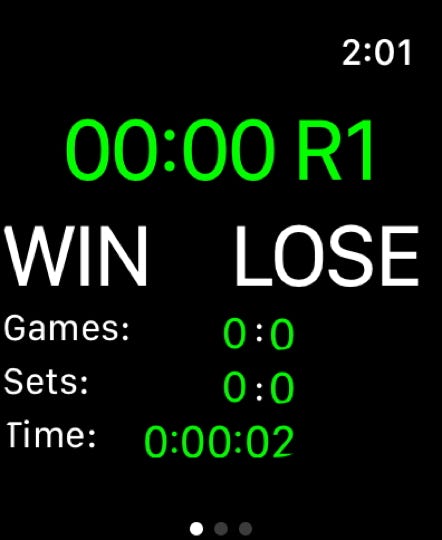
That means that you are receiving and the first server on the other team is serving.
If you can chosen a single set match, the watch will ask you how many games in that single set and what sort of tiebreaker to use. That will be outlined further down, but for now, let’s assume that you started with your team serving for a regular doubles match, the service indicator would change as shown below.
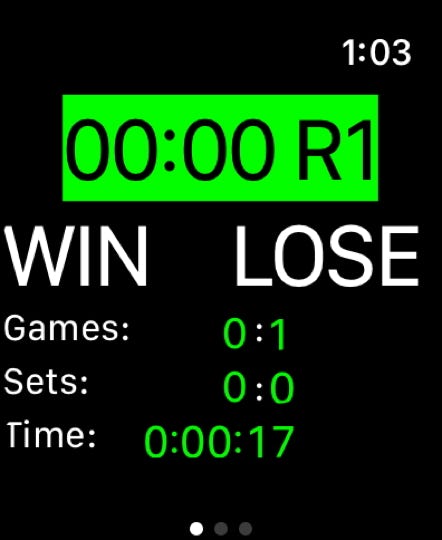
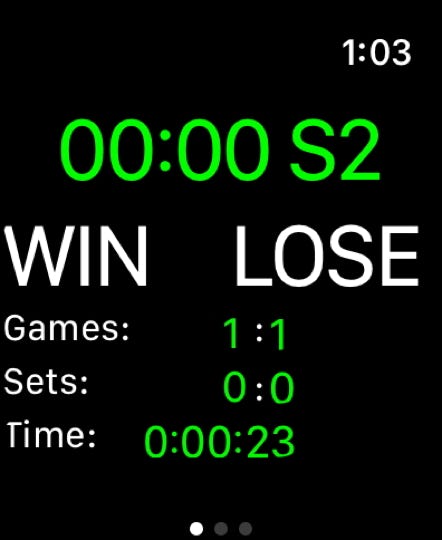
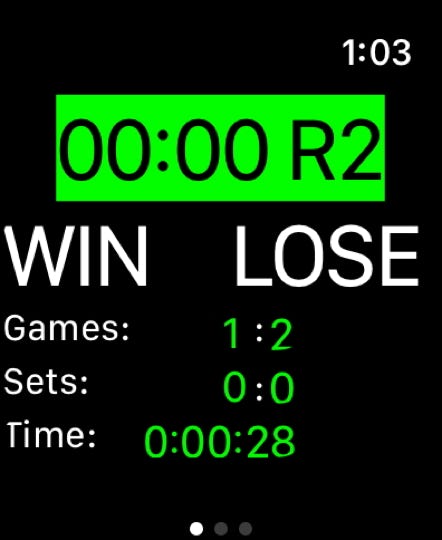
When you are serving, the serving indicator will show an S1 or an S2 with the number indicating who on your team is serving. When the other team is serving, it will show an R1 or an R2. The R indicates you are receiving and the number indicates which player on your opponents team is serving.
Tiebreaks work the same way.
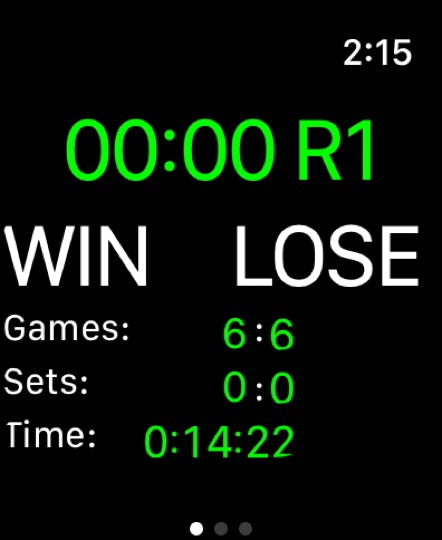
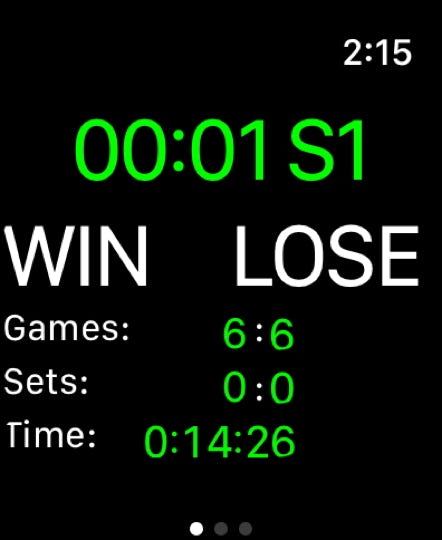
Single set match scoring
Earlier, there was mention of a single set match option. Some leagues use this type of scoring when there are time limits due to indoor court times or outdoor daylight. To select this type of match, follow through the regular match start progress and choose ‘Single Set Match’ on the last screen.
Picking this option will take you to a screen where you can specify the number of games in the single set via a scrolling screen.

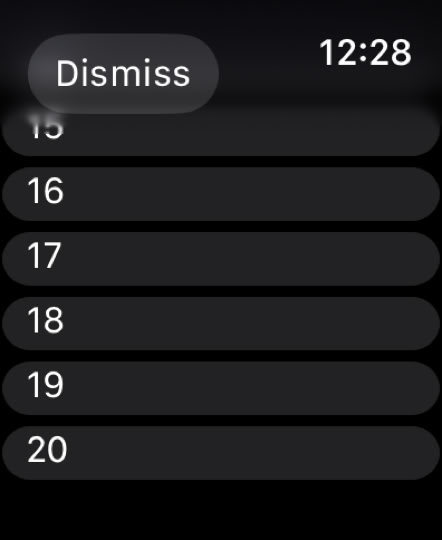
The screen has a header at the top showing the currently selected number of games in the set and it is followed by a scrolling set of numbers which allows you to select a different number of games in the set other than the default count of 10.
If you want a different number of games in the set, use your finger to scroll to that number and tap it. That number will now appear in the header at the top.

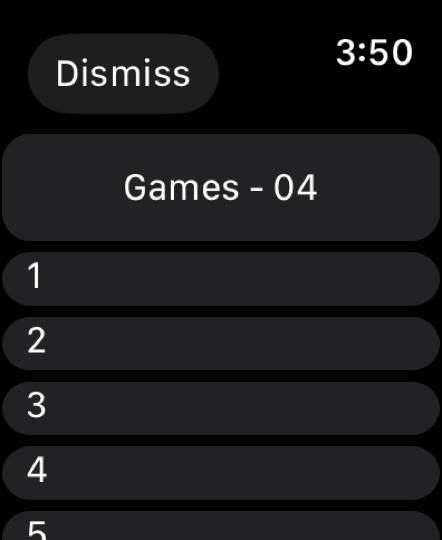
Tap the header to finalize your selection.
Finally, you’ll have to pick a tie break option. There are three. You can select win by two games, tie break at the number of games you selected minus one, or tie break at the number of games you selected. The third option is kind of like a regular single set. It’s a 6 game set with a 7 point tie break at 6-6. After you choose the tie break option, a regular game screen appears with the ‘set’ line being replaced by a ‘total games’ line.

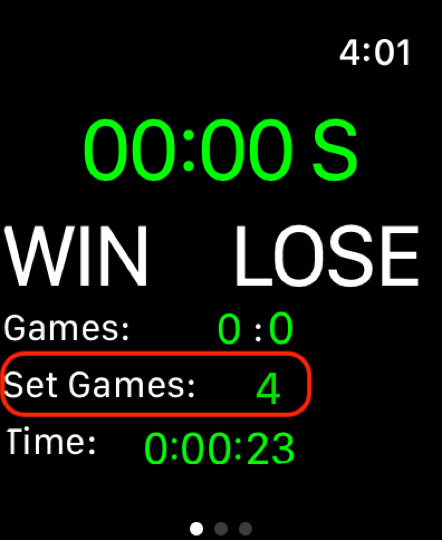
This also works for doubles. The process is the same but you’ll eventually get to a regular doubles scoring screen with a normal four player server progression.
The app also has a fun feature which counts the number of deuces so you can answer that question ‘how many deuces is that’? The deuce count for an individual game shows up as a superscript after the game score. The first deuce in any given game shows up with no notations. After the first deuce, the app starts counting deuces and displays them as part of the score as shown below:
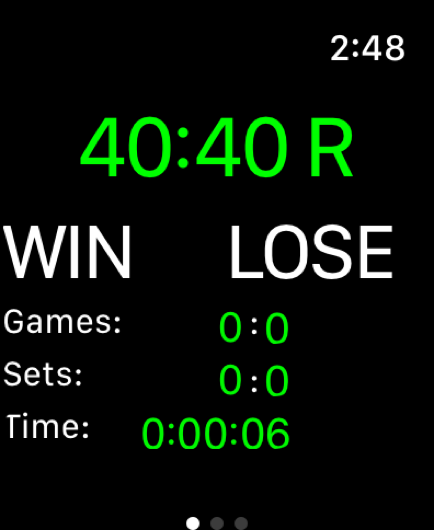
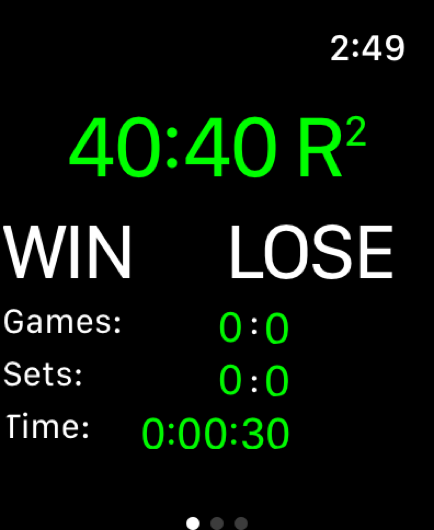

Force a tie break
This can be good, for example, when playing doubles indoors. The match finishes and there’s a little time left so you agree to fill it with a couple of tie breaks. The app allows you to start one and keep score.
To do that, bring up the app menu by double tapping on the score and then select ‘Force Tiebreak’ from the menu screen:
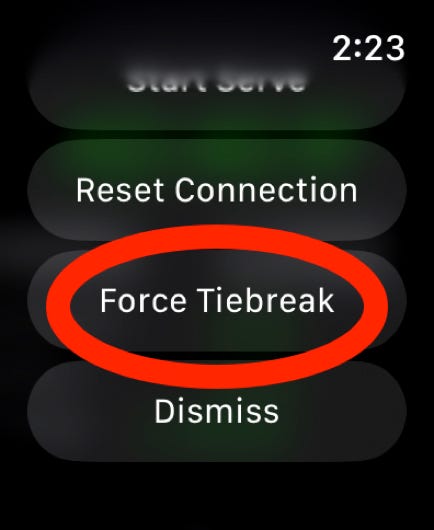
This works for both singles and doubles and the display is identical to a set tiebreak.
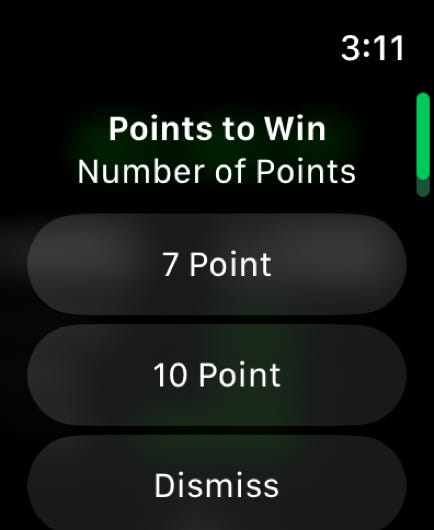
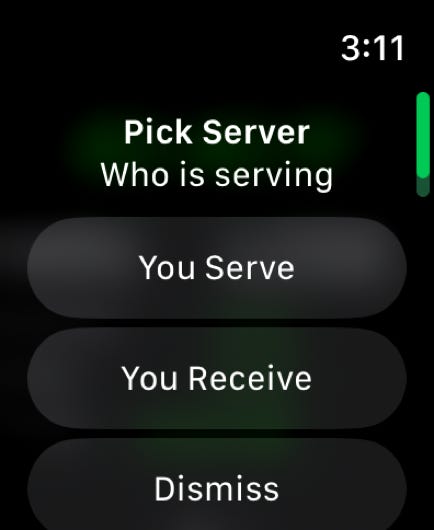
Once you pick this option, you’ll need to select a 7 or 10 point tiebreaker and then who is serving. After that, you will see the TIE BRK screen. Double tap on the TIE BRK literal and the tiebreak will begin. The score will show the match tied at one set each and the third set score to be 6-6.
Adding in player initials for display in doubles
Something relatively new that was added in version 6.2 was the ability, for doubles only, to change the S1/S2/R1/R2 server identifiers shown during the match to player initials or really what ever you wanted.
Quick player initial entry for doubles allows you to change the server ID from S1/S2, R1/R2 to player initials fast and without getting into the flow of your match play.
To do that, start your doubles match just as you would normally, entering who is serving as well as the match scoring system being used. The match starts as per usual showing the start screen. In this example, your side is receiving serve for the first game:
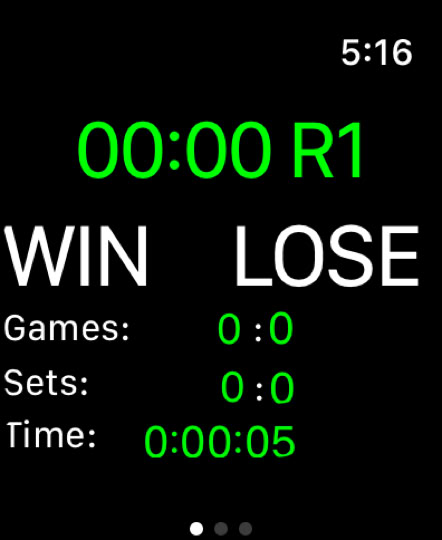
Double tapping the score will show a new entry that only shows up for doubles matches
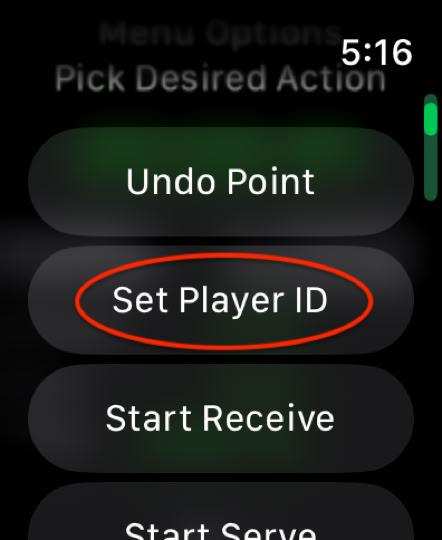
If you select that option, you will be taken to a text entry screen. It will automatically be in Siri dictation mode but you can change it to keyboard entry if you like.
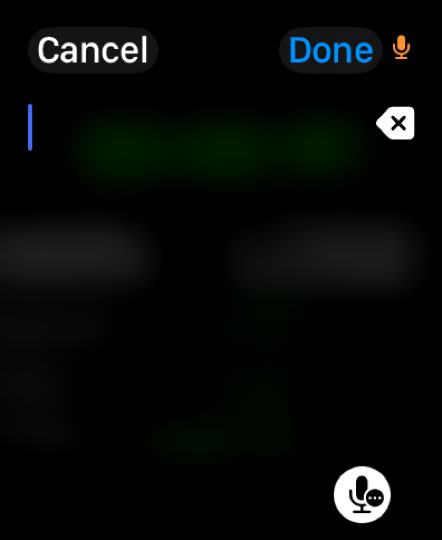
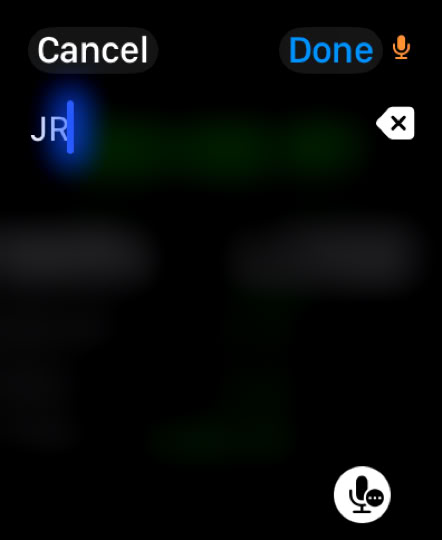
While you can enter anything into here, probably the practical maximum is 2 characters. Quicktap doesn’t enforce that but it does lead to some incomplete displays. They are correct but the certainly don’t look good.
The best way to do that is to clearly enunciate the individual letter(s) into the watch and check them afterwards.
Once you accept the entry by pressing ‘Done’ in the upper right hand corner, the initials will appear on the watch in the server ID part of the display and will display during each game/point that the player is serving.
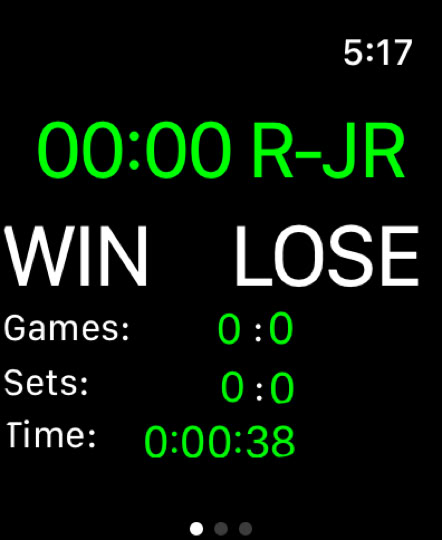
The initials will carry all through any sets of the match and through tiebreakers if any become necessary. This was added because while S1 and S2 are ok designations, it can be sometimes a bit of a struggle to remember which player was S1 and which one was S2. This change removes that problem completely.
As mentioned above, while the app doesn’t force limit the length of the entered designation for a player, if you use more than two letters, it can start to look off. Here is an example of someone entering ‘Penny’ as a player name and how that looks on the scoring screen:

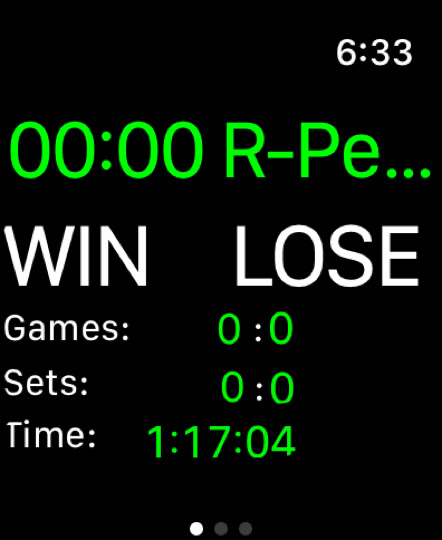
The second area to review is the Flash Biometric Stats and Workout functions.
Flash Biometric Stats allow you to get a quick look at various biometric information by pressing a button. For watches less than Series 8, it only shows heart rate but for Series 8 and beyond it will also show body temperature and blood oxygen level.
More data can be added to this pretty easily and perhaps later version will include more and different types of data.
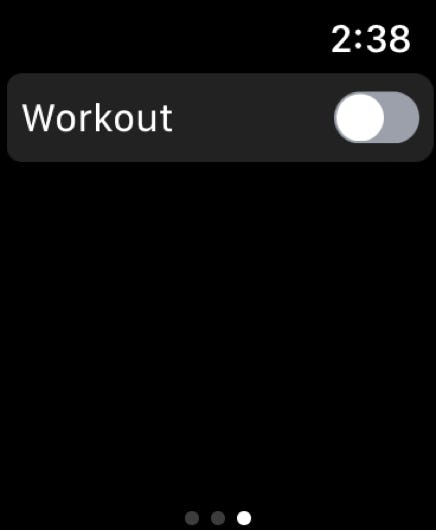
When you start the app, there are three screens that can be switched to by swiping to the left and to the right:
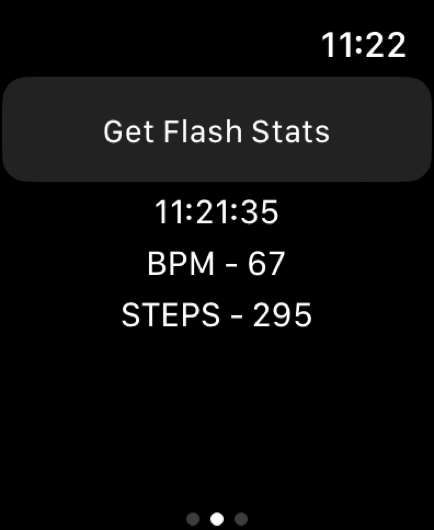
Pressing the ‘Get Flash Stats’ button will update a series of health biometrics that the watch measures. Currently, it only fetches current heart rate and steps for the day. More useful flash biometric stats will be added when they become available on demand to the app.
When the ‘Get Flash Stats’ button is pressed, the time will be change and the stats will be updated to current values.
Please be aware that the STEPS value might be up to 5 to 10 minutes old. That will be true as long as you don’t start a workout. If you do that, they should be much more up to date.
Another capability that the app has is the ability to start a workout within the app and check current status without leaving the app. To start a workout, swipe the button on the Workout screen to be on:
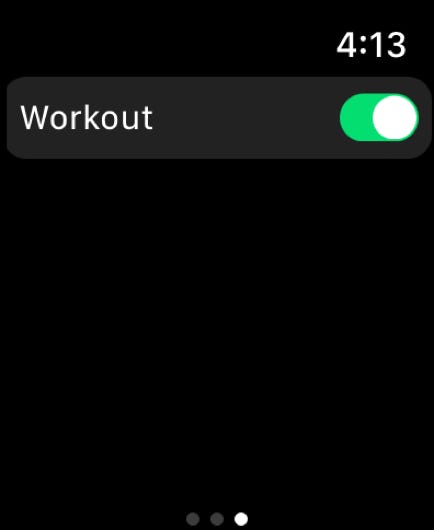
Once the workout button is flipped on, you’ll need to wait a second or two but shortly the first (or second) sample will pop up on the screen.
AN IMPORTANT NOTE: before any workout info will register, you need to allow the app to access the required items in your Apple Health app. To do that, you’ll need to go into the Quicktap phone app and press the ‘Authorize Health Data Access’ button.
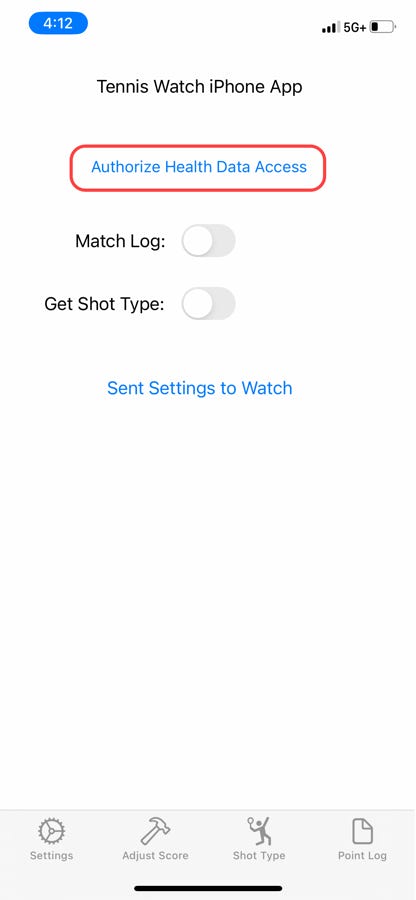
Pressing this button will bring up a screen which allow you to let the app access this information. It will look something like this, depending on which watch you have.
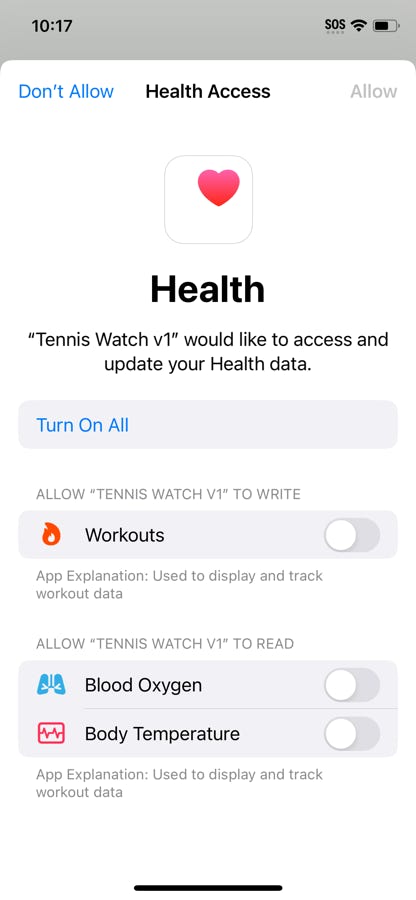
For best results, press the ‘Turn On All’ button which will let the app use that data. The app does not transmit that data anywhere else and it is completely private.
Once the workout starts, you will see a screen that looks like this:
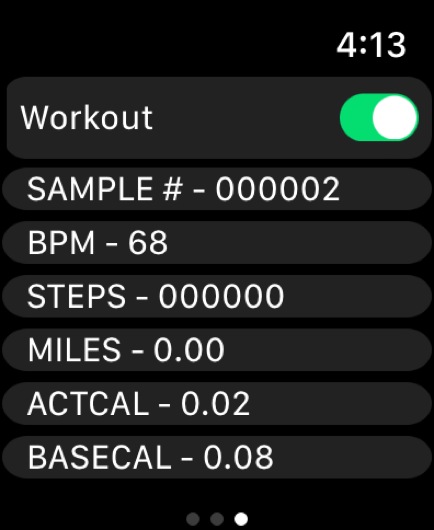
The workout will continue to click away throughout the match, updating the screen with a new sample every 5 seconds or so. All values are relative to the workout so if it say 2,540 steps, that mean 2,540 steps since the start of the workout, etc..
SAMPLE # - counter that updates each time the screen is updated
BPM - heart rate
STEPS - total steps taken while the workout has been in progress
MILES - total distance travelled while the workout has been in progress
ACTCAL - active calories expended during the workout
BASECAL - base calories expended during the workout
More data will be available in the future as it becomes available in future watch and watch software updates.
The workout will automatically stop when the OK button is pressed on the win/lose match summary screen but it can be switched off at any time by flipping the switch to off. The screen will clear and the workout will be saved and by accessible by the Health and Fitness apps, just like any other workout.
If no points are entered for 15 minutes, the watch will pop up a display asking if you wish to keep the workout going or to end it. Either answer is ok but if you don’t answer within 2 mintes, the workout will automatically be ended.
Finally, if you are playing single set matches and you finish your set, the watch will ask you if you want to continue the workout. This allows you to play multiple single set matches within a single workout, useful if you are playing a doubles scramble or in a setup like that.